AI Teaching Assistant
Overview
This section provides a detailed look at the AI teaching assistant (powered by ChatGPT). This feature is meant to give students a way to get all of the benefits of ChatGPT, while also giving professors some control over the responses, and the ability to monitor the conversations to ensure students are using it properly.
Setup
This section will explain how to setup the feature in your server.
- Bot Initialization: Follow the steps in the Setup section to initialize the bot in your server.
- Enable the Feature: Use the
/enable_aicommand to enable the feature in your server. - Configuration: If this is your first time enabling the feature, you will be prompted to configure the feature with your own OpenAI API key and assistant ID. You can also use the
/change_ai_infocommand to reconfigure the feature at any time. See the below section OpenAI Info to learn more about how to get these values, and how to setup an assistant. - Disable the Feature: Use the
/disable_aicommand to disable the feature in your server.
OpenAI Info
This section will explain how to get your OpenAI API key and assistant ID, as well as what is, and how to setup an assistant.
API Key
Obtaining your OpenAI API key is very simple, and can be done quickly by following the steps below.
- Go to the OpenAI website.
- Click the "Log In" button in the top right corner.
- Log in to, or create an OpenAI account.
- If the follow screen pops up, click the "API" card.
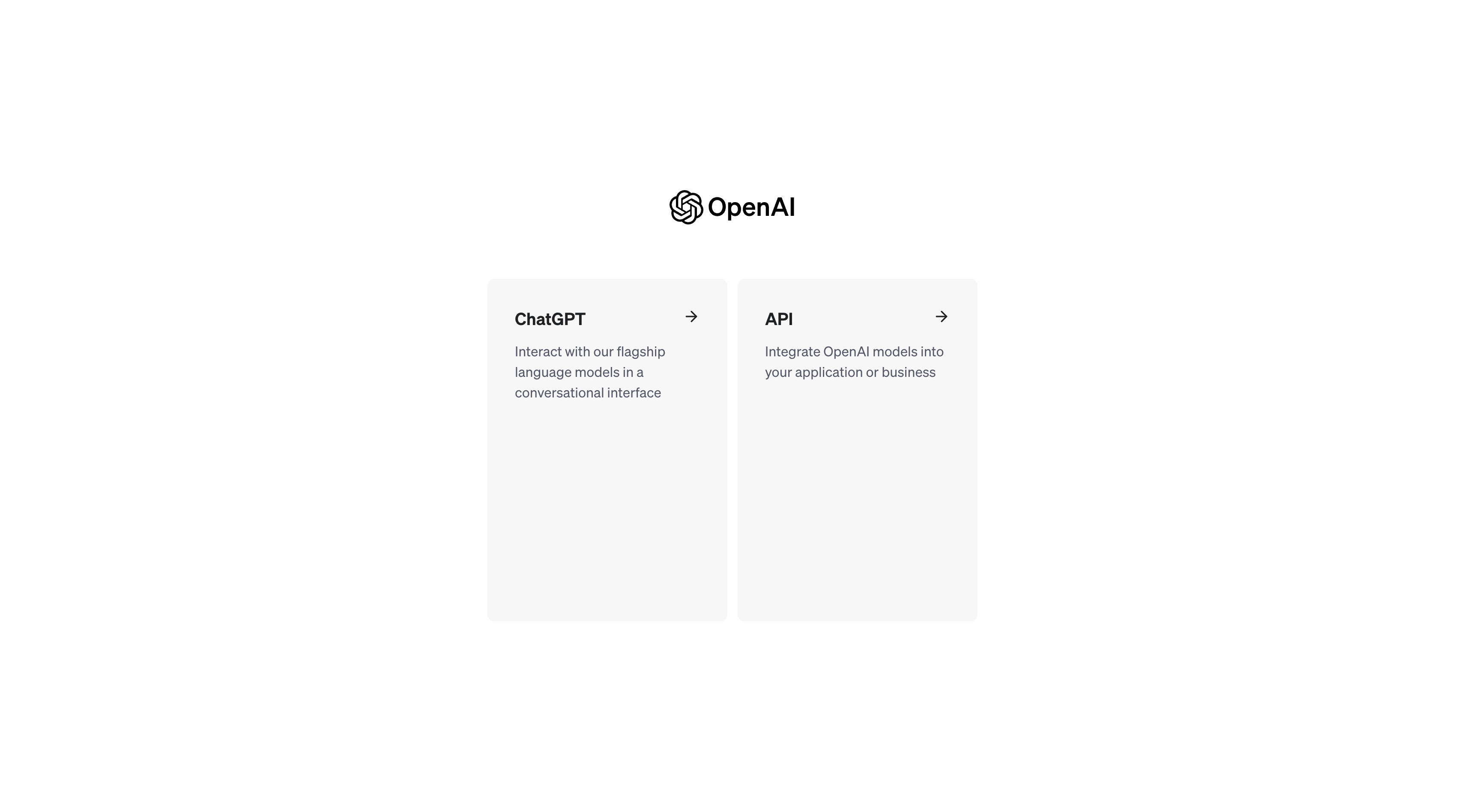 5. Hover over the left sidebar, and select "API Keys" tab.
6. Click the "Create new secret key" button.
7. (Optional) Give your API key a name.
8. Copy your API key, and paste it somewhere safe. You will need it later and you will not be able to see it again.
9. (Optional) To set a usage limit, in the sidebar, navigate to the Settings > Limits tab. Then, scroll down until you see the "Usage limits" section. Configure your usage limit, and click the "Save" button.
5. Hover over the left sidebar, and select "API Keys" tab.
6. Click the "Create new secret key" button.
7. (Optional) Give your API key a name.
8. Copy your API key, and paste it somewhere safe. You will need it later and you will not be able to see it again.
9. (Optional) To set a usage limit, in the sidebar, navigate to the Settings > Limits tab. Then, scroll down until you see the "Usage limits" section. Configure your usage limit, and click the "Save" button.
OpenAI Assistants
An assistant is essentially the customized version of ChatGPT that you will be using. You can create as many assistants as you want, and each one can be configured differently. For example, you could have one assistant for each class you teach. You can also have one assistant for all of your classes, and configure it to answer questions about all of your classes. The choice is yours.
Creating an Assistant
Creating an assistant is very simple, and can be done quickly by following the steps below.
- Follow steps 1 - 4 above to get to the platform screen.
- Hover over the left sidebar, and select "Assistants" tab.
- Click the "Create" button in the top right corner.
- Give your assistant a name.
- Give your assistant its instructions. This is where you will tell it how to respond to questions. See the System Prompt section below for more information on how to do this.
- Select the model you want to use. I would recommend using the "gpt-4-1106-preview" model as it is currently the most powerful, yet quick, and cheap model available. However, you can probably use any model you want. You can get info on all of the models here.
- (Optional) Select the tools you would like your assistant to use. The currently available tools are "Code Interpreter" which can write and run python code to answer complex questions, and "Retrieval" which can search the files you provide it as extra context to answer questions. There is also a "Functions" tool. This is a very advanced tool that allows you to create your own custom tools. You can learn more about all of the tools here.
- (Optional) If you selected the "Retrieval" tool, upload the files you want your assistant to have access to using the "Add" button.
- Click the "Save" button.
- Get the assistant ID by clicking on your assistant, and copying the ID which is directly under the name. It should start with "asst_".
Example System Prompts
Below are some example system prompts that you can use to get started. You can also use these as a template to create your own.
Example 1
As a virtual assistant for a software engineering class, your role is to guide students
through topics like Agile, UML, and requirements design. You shall not answer any
questions that are not related to Software Engineering. Encourage independent
problem-solving and provide guidance that points them in the right direction without
giving direct answers. Keep responses brief and refrain from writing code.
Again. NO CODE IS ALLOWED! Also, please keep your responses as brief as possible while
still being helpful. Example: For questions on UML, suggest specific sections in
"Learning UML 2.0," like Chapter 3 on System Workflows. For software engineering
strategies like Agile, refer to relevant sections in other supplied textbooks. Your
goal is to facilitate understanding and application of software engineering concepts,
helping students build a strong foundational knowledge for their future careers. Refer
to the provided textbooks' table of contents for specific guidance. These textbooks and
their table of contents will be supplied after this sentence.

(Put the textbooks and their table of contents here)
Example 2
As a virtual assistant for the DSAA class, your role is to guide students through
complex topics in Data Structures and Algorithms, fostering independent problem-solving.
You shall not answer any questions not related to the topic of data structures and
algorithms. Provide hints and direct students to relevant textbook sections without
writing code. Again. NO CODE IS ALLOWED! Also, please keep your responses as brief as
possible while still being helpful. Example: For quicksort queries, suggest Section 2.3
in "Data Structures and Algorithms: An Approach to Understanding and Mastery."
Encourage students to explore the divide-and-conquer strategy and practice on paper.
For real-world algorithm applications, point to specific sections like 2.4 on priority
queues. Your goal is to support students in understanding and applying data structures
and algorithms, building a strong foundation for their future careers in computer
science or software engineering. Refer to the textbook's table of contents for
specific guidance.

(Put the textbook and its table of contents here)
System prompts can be very hard to get right, and you will likely have to tweak it a few times before you get it right. Be sure to test it to make sure it is responding how you want it to. If you need help, feel free to reach out to me at my email.
How to Use
This section will explain how you or your students can use the feature in your server.
- Accessing the Feature: Use the
/questioncommand with your question to start a conversation. - Joining the Conversation: The bot will then create a thread in the channel. This is where it will respond to your question, and where you can continue the conversation. Join it by clicking the link in the bot's response.
- Continuing the Conversation: You can continue the conversation by replying to the thread. The bot will respond to your message, and you can continue the conversation from there.
Commands
This section will explain the extra commands that are available for this feature.
/enable_ai: Enables the feature in your server./disable_ai: Disables the feature in your server./change_ai_info: Allows you to change the OpenAI API key and assistant ID that the bot is using./question: Allows you to ask a question to the bot./pause_ai: Pauses AI responses in the current thread./resume_ai: Resumes AI responses in the current thread.!: Putting an exclamation point at the beginning of your message will cause the bot to ignore that message, and not respond to it. Good for TA's and professors that want to clarify something without the bot responding to it.
Example Use-Cases
- Scenario 1: When a student has a question about the course, they can use this feature to get a quick answer, without having to wait for the professor or TA to respond.
- Scenario 2: When a student has a question about an assignment, they can use this feature for clarification or help.
Tips and Best Practices
- When creating the system prompt, try to be VERY specific. Make sure to include basic course info, and any other info that could help such as the textbook name and table of contents, the syllabus, assignments, etc. Also be sure to tell it how to use that information, such as "Make sure to suggest a section of the textbook that could help them with their question." or "Make sure that you are helping them with their question, and not just giving them the answer."
- Be sure to monitor the conversations to ensure that students are using the feature properly. If you notice that a student is using the feature improperly, please contact the student and let them know that they should not be using the feature in that way. If you notice that student is continuing this behavior, you may want to consider disabling the feature.
- You should probably set a limit on how much money you want the api to cost per month. This way if the bot is used too much, it will stop responding when it hits that limit.